现在把注意力转向应用并来完成视图组件。
 为了简洁以及节省空间起见,本章会省去一些import声明、CSS和一些其他类似的代码行。如果你对这些细节的每一行代码都感兴趣的话,可以打开示例代码,那里囊括了运行程序所需要的一切。
首先要做的就是创建顶层组件chat-app。
正如之前讨论过的,页面会被分解成三个顶层组件(如图11-1所示)。
●ChatNavBar:包含未读消息数。
●ChatThreads:展示一个可点击的会话列表,每个会话都包含最新消息和会话头像。
●ChatWindow:展示当前会话的消息和一个用来发送新消息的输入框。
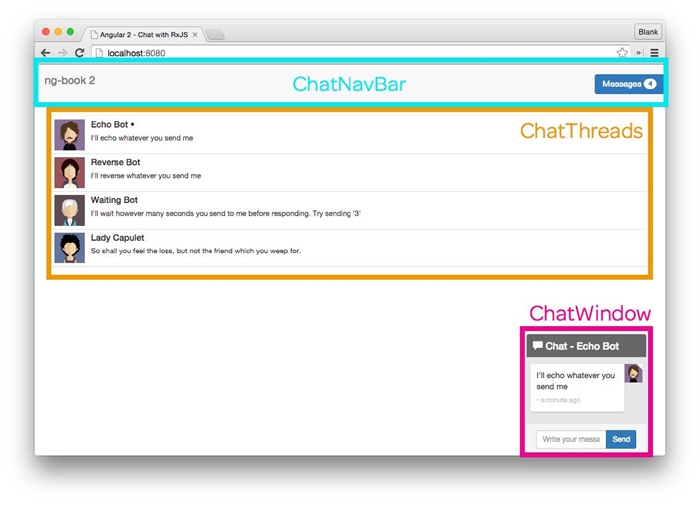
图11-1 聊天应用的顶层组件
下面是组件的代码。
code/rxjs/chat/app/ts/app.ts
@Component({
selector:'chat-app',
template:`
<div>
<nav-bar></nav-bar>
<div class="container">
<chat-threads></chat-threads>
<chat-window></chat-window>
</div>
</div>
`
})
class ChatApp {
constructor(private messagesService:MessagesService,
private threadsService:ThreadsService,
private userService:UserService){
ChatExampleData.init(messagesService, threadsService, userService);
}
}
@NgModule({
declarations:[
ChatApp,
ChatNavBar,
ChatThreads,
ChatThread,
ChatWindow,
ChatMessage,
utilInjectables
],
imports:[
BrowserModule,
FormsModule
],
bootstrap:[ ChatApp ],
providers:[ servicesInjectables ]
})
export class ChatAppModule {}
platformBrowserDynamic().bootstrapModule(ChatAppModule);
注意constructor,在这个构造函数中我们要注入三个服务:MessagesService、ThreadsService和 UserService。我们使用这些服务来初始化示例数据。
如果你对示例数据感兴趣的话,可以在code/rxjs/chat/app/ts/ChatExampleData.ts中找到它。
接下来,我们在ChatThreads组件中构建会话列表。
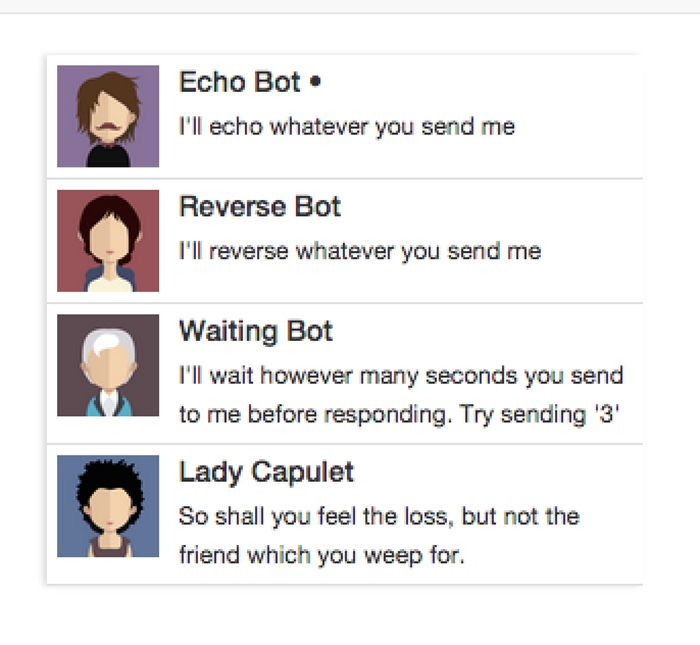
图11-2 按时间排序的会话列表
selector非常直观,我们要匹配chat-threads元素。
code/rxjs/chat/app/ts/components/ChatThreads.ts
@Component({
selector:'chat-threads',
11.2.1 ChatThreads控制器
下面看看组件的控制器ChatThreads类。
code/rxjs/chat/app/ts/components/ChatThreads.ts
export class ChatThreads {
threads:Observable<any>;
constructor(private threadsService:ThreadsService){
this.threads = threadsService.orderedThreads;
}
}
我们在这里注入了ThreadsService,然后保存了orderedThreads的引用。
11.2.2 ChatThreads的template
最后,我们来看一下template及其配置。
code/rxjs/chat/app/ts/components/ChatThreads.ts
@Component({
selector:'chat-threads',
changeDetection:ChangeDetectionStrategy.OnPush,
template:`
<!—— conversations ——>
<div class="row">
<div class="conversation-wrap">
<chat-thread
*ngFor="let thread of threads | async"
[thread]="thread">
</chat-thread>
</div>
</div>
`
这里需要注意的是,使用async管道的ngFor指令、ChangeDetectionStrategy和ChatThread组件。
ChatThread组件(在标记中匹配chat-thread)将展现聊天会话的视图。我们稍后就会来定义它。
ngFor遍历threads属性并把值通过输入属性[thread]传给ChatThread组件。但你可能注意到*ngFor中出现了新东西:async管道。
async是通过AsyncPipe实现的,它可以让我们在视图中使用RxJS的Observable。async的强大之处在于可以让我们像使用同步集合一样来使用异步可观察对象。这个特性极其方便并且非常棒。
在这个组件中,我们指定了一个特定的changeDetection。Angular提供一个灵活高效的变更探测系统。它的好处之一就是如果一个组件拥有不变的或者可观察的绑定,那么我们可以向变更探测系统发送提示,让应用高效地运行。
在这个例子中,Angular不再观察Thread数组的变化;取而代之的是订阅可观察对象threads的变化,并且在一个新的事件发出后触发更新。
下面是完整的ChatThreads组件。
code/rxjs/chat/app/ts/components/ChatThreads.ts
@Component({
selector:'chat-threads',
changeDetection:ChangeDetectionStrategy.OnPush,
template:`
<!—— conversations ——>
<div class="row">
<div class="conversation-wrap">
<chat-thread
*ngFor="let thread of threads | async"
[thread]="thread">
</chat-thread>
</div>
</div>
`
})
export class ChatThreads {
threads:Observable<any>;
constructor(private threadsService:ThreadsService){
this.threads = threadsService.orderedThreads;
}
}
下面来看一下ChatThread组件,它用来展示单个会话。我们先从@Component开始。
code/rxjs/chat/app/ts/components/ChatThreads.ts
@Component({
inputs:['thread'],
selector:'chat-thread',
template:`
<div class="media conversation">
<div class="pull-left">
<img class="media-object avatar"
src="{{thread.avatarSrc}}">
</div>
<div class="media-body">
<h5 class="media-heading contact-name">{{thread.name}}
<span *ngIf="selected">•</span>
</h5>
<small class="message-preview">{{thread.lastMessage.text}}</small>
</div>
<a(click)="clicked($event)" class="div-link">Select</a>
</div>
`
})
稍后再回来看template,我们先来看看组件定义的控制器。
11.3.1 ChatThread控制器和ngOnInit
code/rxjs/chat/app/ts/components/ChatThreads.ts
export class ChatThread implements OnInit {
thread:Thread;
selected:boolean = false;
constructor(private threadsService:ThreadsService){
}
ngOnInit():void {
this.threadsService.currentThread
.subscribe((currentThread:Thread)=> {
this.selected = currentThread &&
this.thread &&
(currentThread.id === this.thread.id);
});
}
clicked(event:any):void {
this.threadsService.setCurrentThread(this.thread);
event.preventDefault();
}
}
注意这里实现了一个新的接口:OnInit。Angular组件可以声明它们监听了某些生命周期事件。第14章会进一步讨论生命周期事件。
在这个例子中,因为我们已经声明实现了OnInit,所以当组件第一次检查变化后就会调用组件中的ngOnInit方法。
使用ngOnInit的一个关键原因在于输入属性thread在constructor中是获取不到的。
在上面可以看到,我们在ngOnInit中订阅了threadsService.currentThread。如果currentThread匹配组件中的thread属性,那么就把selected属性设置为true。(如果不匹配,就把selected属性设置为false。)
我们还设置了一个事件处理器clicked,用来处理选择当前会话的事件。在template中(参见11.3.2节),我们会把会话视图上的点击和clicked()绑定。如果触发了clicked(),就告诉threadsService要把组件的Thread设置成当前会话设置。
11.3.2 ChatThread的template
下面是template的代码。
code/rxjs/chat/app/ts/components/ChatThreads.ts
template:`
<div class="media conversation">
<div class="pull-left">
<img class="media-object avatar"
src="{{thread.avatarSrc}}">
</div>
<div class="media-body">
<h5 class="media-heading contact-name">{{thread.name}}
<span *ngIf="selected">•</span>
</h5>
<small class="message-preview">{{thread.lastMessage.text}}</small>
</div>
<a(click)="clicked($event)" class="div-link">Select</a>
</div>
`
注意这里有一些简单的绑定,如{{thread.avatarSrc}}、{{thread.name}}和{{thread.lastMessage.text}}。
我们还用*ngIf来显示符号•,只有已选择的会话才会显示。
最后绑定了(click)事件来调用clicked()处理器。注意,调用clicked时传入了参数$event,这是一个用来描述事件的特殊变量,由Angular提供。我们在clicked处理器中通过调用方法event.preventDefault();使用了$event变量。这可以确保我们不会跳转至其他页面。
11.3.3 ChatThread的完整代码
下面是完整的ChatThread组件。
code/rxjs/chat/app/ts/components/ChatThreads.ts
@Component({
inputs:['thread'],
selector:'chat-thread',
template:`
<div class="media conversation">
<div class="pull-left">
<img class="media-object avatar"
src="{{thread.avatarSrc}}">
</div>
<div class="media-body">
<h5 class="media-heading contact-name">{{thread.name}}
<span *ngIf="selected">•</span>
</h5>
<small class="message-preview">{{thread.lastMessage.text}}</small>
</div>
<a(click)="clicked($event)" class="div-link">Select</a>
</div>
`
})
export class ChatThread implements OnInit {
thread:Thread;
selected:boolean = false;
constructor(private threadsService:ThreadsService){
}
ngOnInit():void {
this.threadsService.currentThread
.subscribe((currentThread:Thread)=> {
this.selected = currentThread &&
this.thread &&
(currentThread.id === this.thread.id);
});
}
clicked(event:any):void {
this.threadsService.setCurrentThread(this.thread);
event.preventDefault();
}
}
ChatWindow是此应用中最复杂的组件(如图11-3所示)。我们一步一步来完成它。
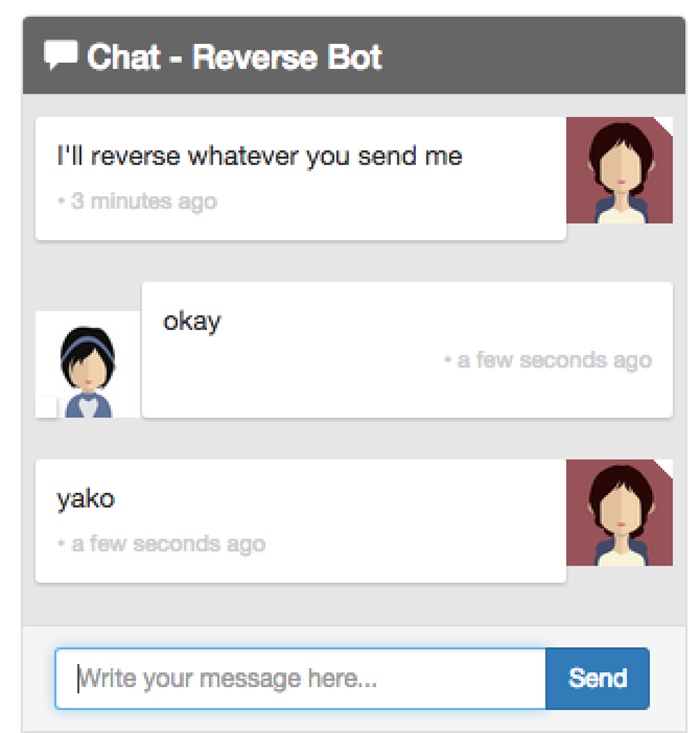
图11-3 聊天窗口
首先从定义@Component开始。
code/rxjs/chat/app/ts/components/ChatWindow.ts
@Component({
selector:'chat-window',
changeDetection:ChangeDetectionStrategy.OnPush,
11.4.1 ChatWindow组件类属性
ChatWindow类有四个属性。
code/rxjs/chat/app/ts/components/ChatWindow.ts
export class ChatWindow implements OnInit {
messages:Observable<any>;
currentThread:Thread;
draftMessage:Message;
currentUser:User;
图11-4表明了每一个属性在何处使用。
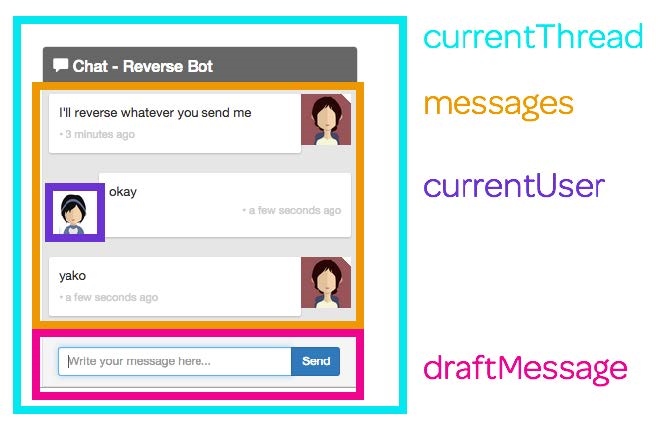
图11-4 聊天窗口的属性
我们会在constructor中注入四样东西。
code/rxjs/chat/app/ts/components/ChatWindow.ts
constructor(private messagesService:MessagesService,
private threadsService:ThreadsService,
private userService:UserService,
private el:ElementRef){
}
前面的三个都是我们创建的服务。最后的el是一个ElementRef对象,可以获取当前的宿主DOM元素。当创建和接收新消息时,我们会使用它把聊天窗口滚动到底部。
请记住:通过在构造函数中使用public
messagesService:MessagesService,我们在注入MessagesService的同时创建了一个实例变量,这个变量可以在类中通过this.messagesService来使用。
11.4.2 ChatWindow的ngOnInit
我们会把这个组件的初始化放在ngOnInit中。在这里主要要做的是,对于可以改变组件属性的可观察对象创建订阅。
code/rxjs/chat/app/ts/components/ChatWindow.ts
ngOnInit():void {
this.messages = this.threadsService.currentThreadMessages;
this.draftMessage = new Message();
首先,我们会把currentThreadMessages保存到messages属性中。接下来,创建一个空的Message实例作为draftMessage属性的默认值。
当发送一条新消息的时候,需要确保这个Message保存了一份将要发送的Thread的引用。因为这个要发送的会话会成为当前会话,所以我们保存了当前已选会话的引用。
code/rxjs/chat/app/ts/components/ChatWindow.ts
this.threadsService.currentThread.subscribe(
(thread:Thread)=> {
this.currentThread = thread;
});
我们还希望新消息是由当前用户发送的,所以对currentUser做了同样的事。
code/rxjs/chat/app/ts/components/ChatWindow.ts
this.userService.currentUser
.subscribe(
(user:User)=> {
this.currentUser = user;
});
11.4.3 ChatWindow的sendMessage
既然讨论到这了,那就来实现sendMessage方法,它可以发送一条新消息。
code/rxjs/chat/app/ts/components/ChatWindow.ts
sendMessage():void {
let m:Message = this.draftMessage;
m.author = this.currentUser;
m.thread = this.currentThread;
m.isRead = true;
this.messagesService.addMessage(m);
this.draftMessage = new Message();
}
sendMessage函数先获取draftMessage并用组件属性设置了author和thread属性。每条已发送的信息其实都已经被读过了(因为是我们写的),所以将其标记为已读。
注意,我们没有更新draftMessage的文本。这是因为很快就会将draftMessage的文本值绑定到视图中。
当draftMessage属性更新后,我们将它发送给messagesService,然后创建一个新的Message对象并赋值给this.draftMessage。这样做是为了确保不会改变已发送出去的消息。
11.4.4 ChatWindow的onEnter
在视图中,我们希望在下面两种场景发送消息:
(1)用户点击Send按钮;
(2)用户敲击回车键。
我们定义一个函数来处理这两种事件。
code/rxjs/chat/app/ts/components/ChatWindow.ts
onEnter(event:any):void {
this.sendMessage();
event.preventDefault();
}
11.4.5 ChatWindow的scrollToBottom
当发送或者收到一条新消息时,我们想滚动到聊天窗口底部。为此要设置宿主元素的scrollTop属性。
code/rxjs/chat/app/ts/components/ChatWindow.ts
scrollToBottom():void {
let scrollPane:any = this.el
.nativeElement.querySelector('.msg-container-base');
scrollPane.scrollTop = scrollPane.scrollHeight;
}
现在有了滚动到底部的函数,还需要确保在恰当的时间调用它。回到ngOnInit方法中,订阅currentThreadMessages的消息集合并在得到一条新消息的时候滚动到底部。
code/rxjs/chat/app/ts/components/ChatWindow.ts
this.messages
.subscribe(
(messages:Array<Message>)=> {
setTimeout(()=> {
this.scrollToBottom();
});
});
}

为什么要使用setTimeout?
如果我们得到新消息时立即调用scrollToBottom,那么滚动到底部的动作就是在新消息渲染完成之前执行的。使用setTimeout可以告诉JavaScript我们要在当前执行队列完成后再运行这个函数。该函数会在组件渲染完成之后执行,这正是我们想要的效果。
11.4.6 ChatWindow的template
template的开头部分看起来应该很眼熟,我们定义了一些标记和面板标题。
code/rxjs/chat/app/ts/components/ChatWindow.ts
@Component({
selector:'chat-window',
changeDetection:ChangeDetectionStrategy.OnPush,
template:`
<div class="chat-window-container">
<div class="chat-window">
<div class="panel-container">
<div class="panel panel-default">
<div class="panel-heading top-bar">
<div class="panel-title-container">
<h3 class="panel-title">
<span class="glyphicon glyphicon-comment"></span>
Chat - {{currentThread.name}}
</h3>
</div>
<div class="panel-buttons-container">
<!—— you could put minimize or close buttons here ——>
</div>
</div>
接下来显示消息列表。这里使用带async管道的ngFor指令来遍历消息列表。我们很快就会讲解单个的chat-message组件。
code/rxjs/chat/app/ts/components/ChatWindow.ts
<div class="panel-body msg-container-base">
<chat-message
*ngFor="let message of messages | async"
[message]="message">
</chat-message>
</div>
最后是消息输入框和各个结束标签。
code/rxjs/chat/app/ts/components/ChatWindow.ts
<div class="panel-footer">
<div class="input-group">
<input type="text"
class="chat-input"
placeholder="Write your message here……"
(keydown.enter)="onEnter($event)"
[(ngModel)]="draftMessage.text" />
<span class="input-group-btn">
<button class="btn-chat"
(click)="onEnter($event)"
>Send</button>
</span>
</div>
</div>
</div>
</div>
</div>
</div>
`
消息输入框是视图中最有意思的部分,我们来看看其中两个有趣的属性:(keydown.enter)和[(ngModel)]。
11.4.7 处理键盘动作
Angular提供了一种简明的方式来处理键盘动作:在元素上绑定事件。在这个例子中,我们绑定了keydown.enter。这表示如果用户按下回车键,就会调用表达式里的函数onEnter($event)。
code/rxjs/chat/app/ts/components/ChatWindow.ts
<input type="text"
class="chat-input"
placeholder="Write your message here……"
(keydown.enter)="onEnter($event)"
[(ngModel)]="draftMessage.text" />
11.4.8 使用ngModel
如前所述,Angular并没有把双向绑定作为一般模式。然而,组件和组件对应视图之间的双向绑定是非常有用的。只要把双向绑定的副作用限制在组件之中,那么保持一个组件属性和视图中同步还是非常方便的。
在这个例子中,我们在输入框的值和draftMessage.text之间建立了一个双向绑定。如果在输入框中输入文字,draftMessage.text就会自动设置为输入的文字。同样,如果在代码中更新draftMessage.text,那么视图中输入框的值也会随之改变。
code/rxjs/chat/app/ts/components/ChatWindow.ts
<input type="text"
class="chat-input"
placeholder="Write your message here……"
(keydown.enter)="onEnter($event)"
[(ngModel)]="draftMessage.text" />
11.4.9 点击Send按钮
在Send按钮上将(click)属性绑定到组件中的onEnter函数。
code/rxjs/chat/app/ts/components/ChatWindow.ts
<span class="input-group-btn">
<button class="btn-chat"
(click)="onEnter($event)"
>Send</button>
</span>
11.4.10 完整的ChatWindow组件
下面是ChatWindow组件的完整代码清单。
code/rxjs/chat/app/ts/components/ChatWindow.ts
@Component({
selector:'chat-window',
changeDetection:ChangeDetectionStrategy.OnPush,
template:`
<div class="chat-window-container">
<div class="chat-window">
<div class="panel-container">
<div class="panel panel-default">
<div class="panel-heading top-bar">
<div class="panel-title-container">
<h3 class="panel-title">
<span class="glyphicon glyphicon-comment"></span>
Chat - {{currentThread.name}}
</h3>
</div>
<div class="panel-buttons-container">
<!—— you could put minimize or close buttons here ——>
</div>
</div>
<div class="panel-body msg-container-base">
<chat-message
*ngFor="let message of messages | async"
[message]="message">
</chat-message>
</div>
<div class="panel-footer">
<div class="input-group">
<input type="text"
class="chat-input"
placeholder="Write your message here……"
(keydown.enter)="onEnter($event)"
[(ngModel)]="draftMessage.text" />
<span class="input-group-btn">
<button class="btn-chat"
(click)="onEnter($event)"
>Send</button>
</span>
</div>
</div>
</div>
</div>
</div>
</div>
`
})
export class ChatWindow implements OnInit {
messages:Observable<any>;
currentThread:Thread;
draftMessage:Message;
currentUser:User;
constructor(private messagesService:MessagesService,
private threadsService:ThreadsService,
private userService:UserService,
private el:ElementRef){
}
ngOnInit():void {
this.messages = this.threadsService.currentThreadMessages;
this.draftMessage = new Message();
this.threadsService.currentThread.subscribe(
(thread:Thread)=> {
this.currentThread = thread;
});
this.userService.currentUser
.subscribe(
(user:User)=> {
this.currentUser = user;
});
this.messages
.subscribe(
(messages:Array<Message>)=> {
setTimeout(()=> {
this.scrollToBottom();
});
});
}
onEnter(event:any):void {
this.sendMessage();
event.preventDefault();
}
sendMessage():void {
let m:Message = this.draftMessage;
m.author = this.currentUser;
m.thread = this.currentThread;
m.isRead = true;
this.messagesService.addMessage(m);
this.draftMessage = new Message();
}
scrollToBottom():void {
let scrollPane:any = this.el
.nativeElement.querySelector('.msg-container-base');
scrollPane.scrollTop = scrollPane.scrollHeight;
}
}
每条消息都是通过ChatMessage组件渲染的,如图11-5所示。
该组件相对简明,其主要逻辑是根据消息是否由当前用户所创建来渲染出略有不同的视图。如果该消息不是当前用户创建的,就认为消息是收到的(incoming)。
我们先从定义@Component开始。
code/rxjs/chat/app/ts/components/ChatWindow.ts
@Component({
inputs:['message'],
selector:'chat-message',
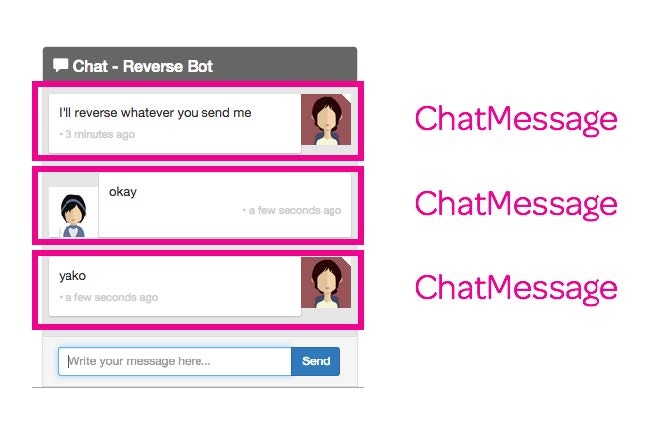
图11-5 ChatMessage组件
11.5.1 设置incoming属性
记住,每个ChatMessage组件都属于一条Message。因此,要在ngOnInit方法里订阅currentUser流并根据这条Message是否由当前用户所创建来设置incoming。
code/rxjs/chat/app/ts/components/ChatWindow.ts
export class ChatMessage implements OnInit {
message:Message;
currentUser:User;
incoming:boolean;
constructor(private userService:UserService){
}
ngOnInit():void {
this.userService.currentUser
.subscribe(
(user:User)=> {
this.currentUser = user;
if(this.message.author && user){
this.incoming = this.message.author.id!== user.id;
}
});
}
}
11.5.2 ChatMessage的template
在template中有两处值得注意:
(1)FromNowPipe管道
(2)[ngClass]属性
先来看看它的代码。
code/rxjs/chat/app/ts/components/ChatWindow.ts
@Component({
inputs:['message'],
selector:'chat-message',
template:`
<div class="msg-container"
[ngClass]="{'base-sent':!incoming, 'base-receive':incoming}">
<div class="avatar"
*ngIf="!incoming">
<img src="{{message.author.avatarSrc}}">
</div>
<div class="messages"
[ngClass]="{'msg-sent':!incoming, 'msg-receive':incoming}">
<p>{{message.text}}</p>
<p class="time">{{message.author.name}} ? {{message.sentAt | fromNow}}</p>
</div>
<div class="avatar"
*ngIf="incoming">
<img src="{{message.author.avatarSrc}}">
</div>
</div>
`
})
FromNowPipe是一个管道,把消息的发送时间转换为像“×秒前”这样对用户友好的信息。如你所见,我们要这样用它:{{message.sentAt | fromNow}}。
FromNowPipe使用优秀的moment.js 类库。如果你想学习如何创建自定义管道,可以阅读FromNowPipe的源代码:code/rxjs/chat/app/ts/util/FromNowPipe.ts。
我们也在视图中充分利用了ngClass。当这样写时:
[ngClass]="{'msg-sent':!incoming, 'msg-receive':incoming}"
我们是在告诉Angular,如果incoming为真就使用msg-receive类(否则使用msg-sent类)。
借助incoming属性,我们就能以不同的形式来显示收到和发出的消息。
11.5.3 完整的ChatMessage代码清单
下面是完整的ChatMessage组件。
code/rxjs/chat/app/ts/components/ChatWindow.ts
import {
Component,
OnInit,
ElementRef,
ChangeDetectionStrategy
} from '@angular/core';
import {
MessagesService,
ThreadsService,
UserService
} from '../services/services';
import {Observable} from 'rxjs';
import {User, Thread, Message} from '../models';
@Component({
inputs:['message'],
selector:'chat-message',
template:`
<div class="msg-container"
[ngClass]="{'base-sent':!incoming, 'base-receive':incoming}">
<div class="avatar"
*ngIf="!incoming">
<img src="{{message.author.avatarSrc}}">
</div>
<div class="messages"
[ngClass]="{'msg-sent':!incoming, 'msg-receive':incoming}">
<p>{{message.text}}</p>
<p class="time">{{message.author.name}} ? {{message.sentAt | fromNow}}</p>
</div>
<div class="avatar"
*ngIf="incoming">
<img src="{{message.author.avatarSrc}}">
</div>
</div>
`
})
export class ChatMessage implements OnInit {
message:Message;
currentUser:User;
incoming:boolean;
constructor(private userService:UserService){
}
ngOnInit():void {
this.userService.currentUser
.subscribe(
(user:User)=> {
this.currentUser = user;
if(this.message.author && user){
this.incoming = this.message.author.id!== user.id;
}
});
}
}
@Component({
selector:'chat-window',
changeDetection:ChangeDetectionStrategy.OnPush,
template:`
<div class="chat-window-container">
<div class="chat-window">
<div class="panel-container">
<div class="panel panel-default">
<div class="panel-heading top-bar">
<div class="panel-title-container">
<h3 class="panel-title">
<span class="glyphicon glyphicon-comment"></span>
Chat - {{currentThread.name}}
</h3>
</div>
<div class="panel-buttons-container">
<!—— you could put minimize or close buttons here ——>
</div>
</div>
<div class="panel-body msg-container-base">
<chat-message
*ngFor="let message of messages | async"
[message]="message">
</chat-message>
</div>
<div class="panel-footer">
<div class="input-group">
<input type="text"
class="chat-input"
placeholder="Write your message here……"
(keydown.enter)="onEnter($event)"
[(ngModel)]="draftMessage.text" />
<span class="input-group-btn">
<button class="btn-chat"
(click)="onEnter($event)"
>Send</button>
</span>
</div>
</div>
</div>
</div>
</div>
</div>
`
})
export class ChatWindow implements OnInit {
messages:Observable<any>;
currentThread:Thread;
draftMessage:Message;
currentUser:User;
constructor(private messagesService:MessagesService,
private threadsService:ThreadsService,
private userService:UserService,
private el:ElementRef){
}
ngOnInit():void {
this.messages = this.threadsService.currentThreadMessages;
this.draftMessage = new Message();
this.threadsService.currentThread.subscribe(
(thread:Thread)=> {
this.currentThread = thread;
});
this.userService.currentUser
.subscribe(
(user:User)=> {
this.currentUser = user;
});
this.messages
.subscribe(
(messages:Array<Message>)=> {
setTimeout(()=> {
this.scrollToBottom();
});
});
}
onEnter(event:any):void {
this.sendMessage();
event.preventDefault();
}
sendMessage():void {
let m:Message = this.draftMessage;
m.author = this.currentUser;
m.thread = this.currentThread;
m.isRead = true;
this.messagesService.addMessage(m);
this.draftMessage = new Message();
}
scrollToBottom():void {
let scrollPane:any = this.el
.nativeElement.querySelector('.msg-container-base');
scrollPane.scrollTop = scrollPane.scrollHeight;
}
}
我们要讨论的最后一个组件是ChatNavBar。导航条中会显示当前用户的未读消息数,如图11-6所示。

图11-6 ChatNavBar组件中的未读数
 试验未读消息数量最好的办法是使用等待机器人(Waiting
Bot)。如何你还没有试过,尝试发消息“3”给等待机器人,然后切换到其他聊天窗口。等待机器人会等3秒再给你回复消息,这样你就会看到未读消息数量的增长。
试验未读消息数量最好的办法是使用等待机器人(Waiting
Bot)。如何你还没有试过,尝试发消息“3”给等待机器人,然后切换到其他聊天窗口。等待机器人会等3秒再给你回复消息,这样你就会看到未读消息数量的增长。
11.6.1 ChatNavBar的@Component
首先,我们定义了非常简单的@Component配置。
code/rxjs/chat/app/ts/components/ChatNavBar.ts
@Component({
selector:'nav-bar',
11.6.2 ChatNavBar控制器
ChatNavBar控制器唯一需要做的就是记录unreadMessagesCount属性。这其实比表面看上去稍微复杂一些。
最简明的方式就是监听messagesService.messages,然后计算属性isRead是false的Messages数量总和。对于当前会话外的所有消息,这种方法可以正常工作。然而,当messages流发出新值时,无法保证当前会话的新消息被标记为已读。
最安全的方式就合并messages流和currentThread流,以确保不会把任何属于当前会话的消息算入总数。
我们用combineLatest操作符来进行实现(本章前面也使用过它)。
code/rxjs/chat/app/ts/components/ChatNavBar.ts
export class ChatNavBar implements OnInit {
unreadMessagesCount:number;
constructor(private messagesService:MessagesService,
private threadsService:ThreadsService){
}
ngOnInit():void {
this.messagesService.messages
.combineLatest(
this.threadsService.currentThread,
(messages:Message[], currentThread:Thread)=>
[currentThread, messages])
.subscribe(([currentThread, messages]:[Thread, Message[]])=> {
this.unreadMessagesCount =
_.reduce(
messages,
(sum:number, m:Message)=> {
let messageIsInCurrentThread:boolean = m.thread &&
currentThread &&
(currentThread.id === m.thread.id);
if(m &&!m.isRead &&!messageIsInCurrentThread){
sum = sum + 1;
}
return sum;
},
0);
});
}
}
如果你不熟悉TypeScript的话,会觉得上面的语法有些不太容易理解。我们在combineLatest回调函数中返回了一个数组,这个数组包含两个元素:currentThread和messages。
然后我们订阅了combineLatest操作符返回的流,在函数调用中解构这些对象。接下来,我们用reduce化简了messages集合,对所有未读并且不属于当前会话的消息进行计数。
11.6.3 ChatNavBar的template
在视图中,唯一需要做的事就是显示unreadMessagesCount属性。
code/rxjs/chat/app/ts/components/ChatNavBar.ts
@Component({
selector:'nav-bar',
template:`
<nav class="navbar navbar-default">
<div class="container-fluid">
<div class="navbar-header">
<a class="navbar-brand" href="https://ng-book.com/2">
<img src="${require('images/logos/ng-book-2-minibook.png')}"/>
ng-book 2
</a>
</div>
<p class="navbar-text navbar-right">
<button class="btn btn-primary" type="button">
Messages <span class="badge">{nreadMessagesCount}</span>
</button>
</p>
</div>
</nav>
`
11.6.4 完整的ChatNavBar组件
下面是完整的ChatNavBar组件代码清单。
code/rxjs/chat/app/ts/components/ChatNavBar.ts
import {Component, OnInit} from '@angular/core';
import {MessagesService, ThreadsService} from '../services/services';
import {Message, Thread} from '../models';
import * as _ from 'underscore';
@Component({
selector:'nav-bar',
template:`
<nav class="navbar navbar-default">
<div class="container-fluid">
<div class="navbar-header">
<a class="navbar-brand" href="https://ng-book.com/2">
<img src="${require('images/logos/ng-book-2-minibook.png')}"/>
ng-book 2
</a>
</div>
<p class="navbar-text navbar-right">
<button class="btn btn-primary" type="button">
Messages <span class="badge">{nreadMessagesCount}</span>
</button>
</p>
</div>
</nav>
`
})
export class ChatNavBar implements OnInit {
unreadMessagesCount:number;
constructor(private messagesService:MessagesService,
private threadsService:ThreadsService){
}
ngOnInit():void {
this.messagesService.messages
.combineLatest(
this.threadsService.currentThread,
(messages:Message[], currentThread:Thread)=>
[currentThread, messages])
.subscribe(([currentThread, messages]:[Thread, Message[]])=> {
this.unreadMessagesCount =
_.reduce(
messages,
(sum:number, m:Message)=> {
let messageIsInCurrentThread:boolean = m.thread &&
currentThread &&
(currentThread.id === m.thread.id);
if(m &&!m.isRead &&!messageIsInCurrentThread){
sum = sum + 1;
}
return sum;
},
0);
});
}
}
好了,把它们全部放在一起,就是一个完整的聊天应用了(如图11-7所示)!
查看文件code/redux/angular2-redux-chat/app/ts/ChatExampleData.ts,你会发现我们已经写好了少量可以跟你聊天的机器人。下面是从反转机器人中截取的一些代码:
let rev:User = new User("Reverse Bot", require("images/avatars/female-avatar-4.png"));
let tRev:Thread = new Thread("tRev", rev.name, rev.avatarSrc);
code/rxjs/chat/app/ts/ChatExampleData.ts
messagesService.messagesForThreadUser(tRev, rev)
.forEach((message:Message):void => {
messagesService.addMessage(
new Message({
author:rev,
text:message.text.split('').reverse().join(''),
thread:tRev
})
);
},
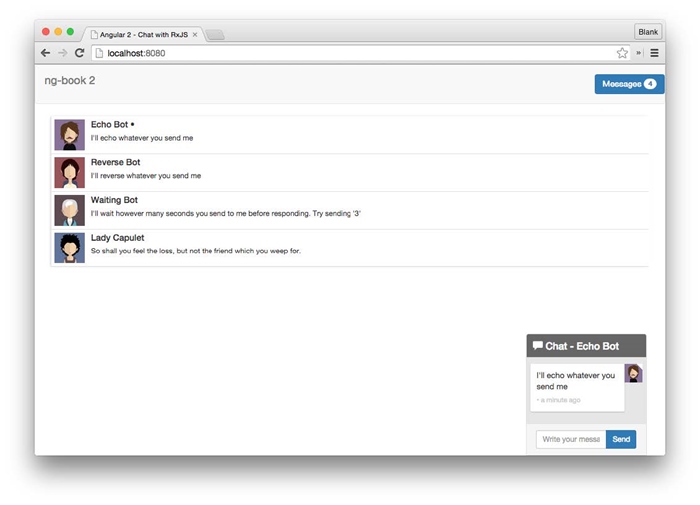
图11-7 完成后的聊天应用
如你所见,我们已经通过messagesForThreadUser方法为反转机器人订阅了消息。你可以试着写几个自己的机器人。
改进这个聊天应用的一些方法包括加强RxJS的使用并连接到一个真实的API。发起API请求的方法我们已经在第6章中讨论过了。眼下请尽情享受你的聊天应用吧!